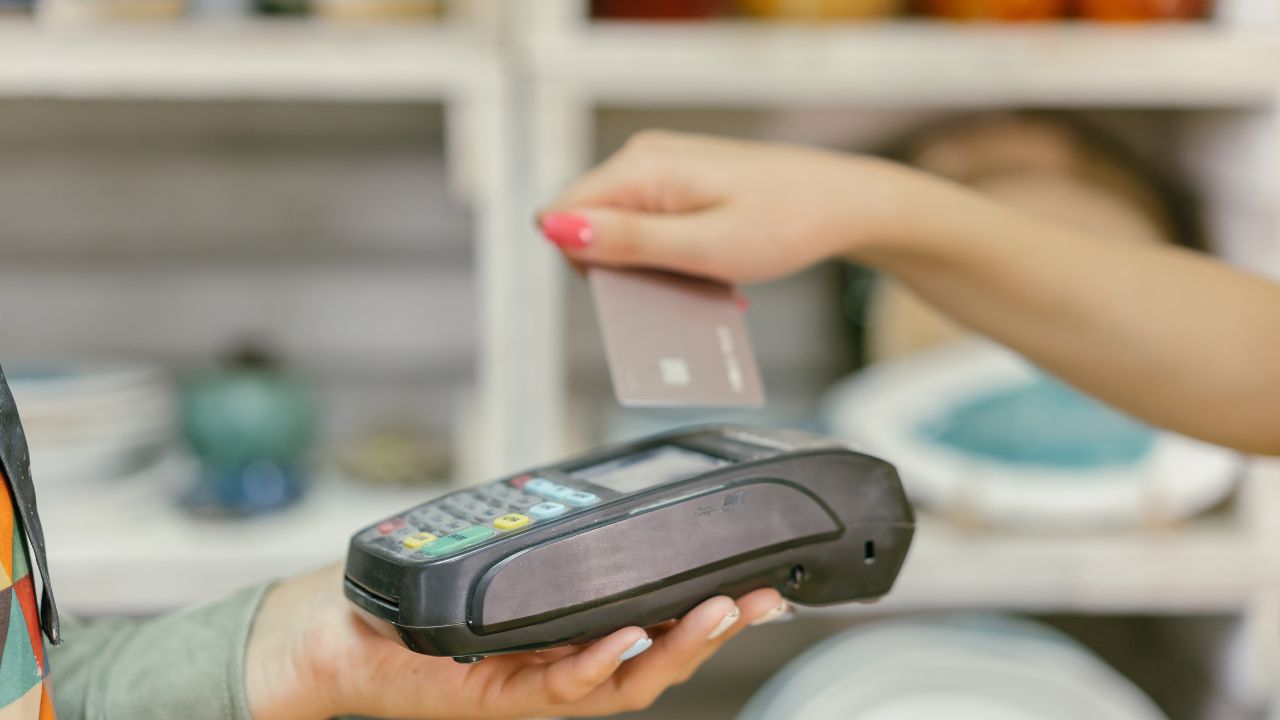
You add a card to Google Ads and it’s refused. Or it’s accepted, and the first charge fails anyway, and your campaigns stop. If the card is prepaid, the cause is often not the card, but the account’s payment setting.
Quick answer
1. Google Ads has two payment settings: automatic payments (postpay), where you’re charged after ads run, and manual payments (prepay), where you add funds before ads run.
2. Google’s help center says plainly: Google does not accept prepaid cards for postpay.
3. Prepay isn’t available in every country. If it isn’t offered where your account is billed, use a bank-issued credit or debit card or another accepted method, not a workaround.
The two payment settings
Every Google Ads payments profile uses one payment setting, shown under Billing as “How you pay”.
Automatic payments (postpay). Your ads run first, and Google charges your payment method afterwards. According to Google Ads Help, you’re charged either 30 days after your last automatic payment or when your costs reach your billing threshold, whichever comes first. The threshold usually starts low and can rise as the account builds a payment history. [VERIFY: current Google wording on how the threshold starts and increases]
Manual payments (prepay). You add funds before your ads run. As ads accrue costs, the prepaid balance goes down, and ads stop when it runs out, unless you add more. Google lists prepay as not available in many countries and territories; the list is on the payment methods page.
Some eligible businesses can also apply for monthly invoicing, a credit line paid by invoice. That’s a separate arrangement with its own requirements.
Which card types fit each setting
Here is what Google’s payment methods page says, setting by setting:
| Card or method | Automatic payments (postpay) | Manual payments (prepay) |
|---|---|---|
| Bank-issued credit card | Accepted | Can be used to add funds |
| Bank-issued debit card | Accepted | Can be used to add funds |
| Prepaid card | Not accepted (“Google does not accept prepaid cards for postpay”) | Not addressed on the page [VERIFY: whether prepaid cards are accepted for prepay in the reader’s country] |
| One-time-use (virtual) card | Not listed for postpay | Accepted for payments if it carries a supported network logo |
| Bank account / direct debit | Available in some countries | Bank prepayment available in some countries |
| PayPal | Temporarily unavailable for new postpay accounts | Can be used for prepayments where available |
| Local methods (Pix, Banelco and others) | Country-specific | Country-specific, often prepay only |
Two lessons follow from that table.
First, if your account is on automatic payments, a prepaid card is the wrong tool, whatever brand it carries. It may be refused when you add it, or fail later when Google tries to charge it. That isn’t a bank problem or a card fault. It’s Google’s rule for that setting.
Second, the prepay column depends heavily on country. Which methods are accepted, and whether prepay exists at all, varies by the billing country of the payments profile. Check the payment methods page for your billing country before you choose a setting or a card.
Why Google rejects prepaid cards on postpay
Google doesn’t publish its reasoning, but the mechanics explain it. On postpay, Google extends something like credit: it serves your ads first and collects later. The charge on the billing threshold or on day 30 is a payment for spend that already happened.
A prepaid card can’t support that model reliably. Its limit is whatever balance happens to be on it when Google charges, and that balance can be zero. A bank-issued credit or debit card is linked to an account the issuer manages, with a cardholder the issuer has identified. That’s a better fit for a merchant collecting after the fact.
On prepay, the risk runs the other way. You pay first, so Google isn’t owed anything when ads run. That’s why the methods allowed for adding funds are broader, including one-time-use virtual cards.
How to choose and switch the setting
According to Google Ads Help, you change the setting in Billing > Settings, using the edit option next to “How you pay”. A few rules apply:
- You need the right access. Only users with Admin access or the right payments profile permissions can change it.
- Manual payments must be available in your country. You can switch from automatic to manual only where manual payments are offered.
- Switching back may not be possible. If you’re on manual payments and that option is no longer offered in your country, you can switch to automatic, but you won’t be able to switch back.
Choose deliberately, using this procedure:
1. Open the payment methods page in Google Ads Help and find your billing country.
2. Check whether manual payments (prepay) are offered there, and which methods are accepted for each setting.
3. Decide which fits your business:
- Automatic payments if you’ll pay with a bank-issued credit or debit card or a bank account and want ads to run without top-ups.
- Manual payments if you want to fund spend in advance and cap it at the balance, and the method you want to use is accepted for prepay in your country.
4. Set the setting in Billing > Settings before adding the payment method.
5. Add a backup payment method that’s valid for that setting.
6. On prepay, set a reminder to add funds before the balance runs out. Ads stop when it does.
When a payment is declined
Google Ads Help is direct about who makes the decision: “your bank declines your payment, not Google.” The Billing Summary shows the date, amount and, where available, the reason.
Work through it in order:
1. Read the Billing Summary for the declined charge and its reason.
2. Check the card against the setting. A prepaid card on automatic payments isn’t accepted. Replace it with a method accepted for postpay.
3. Ask the issuer if the reason isn’t shown. Common causes: international or online transactions disabled, a daily limit, an address or authentication failure, or insufficient funds when the threshold charge arrived.
4. Pay the outstanding balance with an accepted method. Google says ads may stop after a decline until it’s resolved.
5. Add a backup payment method so the next decline doesn’t stop delivery.
6. Pause campaigns if you can’t fix the payment quickly, so new costs don’t build up on an unpaid balance.
What not to do
- Don’t open a new Google Ads account to get away from a declined balance or a suspension. Google treats circumventing its systems as a serious policy violation, and connected accounts can be suspended.
- Don’t add someone else’s card, or a card in a billing country that isn’t yours, to get a setting your country doesn’t offer.
- Don’t keep re-adding the same declined card or a series of new ones. Fix the cause first.
If prepay isn’t offered in your country and you don’t have an accepted card, the fix is to get an accepted payment method, such as a bank-issued card that allows international online transactions, a bank account, or a local method Google supports. It is not a way around the setting.
Where a prepaid card fits, if anywhere
A prepaid card only belongs on a Google Ads account where the account is on manual payments, prepay is offered in your billing country, and Google accepts that card type for adding funds. On automatic payments, it doesn’t fit, from any provider.
As an example of the product type, VCCBuy’s page on cards for Google Ads covers its prepaid Visa and Mastercard cards, which are funded with USDT, USDC and other coins and held in USD. You can save a billing name and address per card, and 3D Secure codes are shown in the dashboard for 10 minutes. But the rule above applies in full: VCCBuy’s cards are prepaid, so they are not accepted for postpay, and whether they work for prepay depends on Google’s rules for your country. VCCBuy is not a bank. For automatic payments, use a bank-issued credit or debit card or a bank account.
FAQ
Can I use a prepaid card on Google Ads? Not on automatic payments (postpay): Google’s help center says it doesn’t accept prepaid cards for postpay. On manual payments (prepay), check Google’s payment methods page for your billing country.
Why is my Google Ads payment declined when the card has money on it? Either the card isn’t accepted for your payment setting (for example, a prepaid card on postpay), or the issuer declined the charge. The Billing Summary and your issuer can tell you which.
Can I switch from automatic to manual payments? Only where manual payments are offered in your country, and only with the right access. If you leave manual payments where they’re no longer offered, you may not be able to switch back.
Conclusion
On Google Ads, the payment setting decides which cards are eligible. Postpay needs a bank-issued card or account, because Google doesn’t accept prepaid cards there; prepay, where your country offers it, accepts a wider set of methods for adding funds. Check the setting and Google’s country list first, then choose the card that fits it, not the other way around.
About the author: [Author name] is a payments and fintech writer at VCCBuy (https://vccbuy.net/), where they cover virtual cards, card networks and spending stablecoins online. They write about ad platform billing settings and which payment methods each one accepts.
Disclosure: the author writes for VCCBuy, which is mentioned in this article.
Leave a Reply